
How do I use CSV Import/Export to Edit Metaobjects?
Shopify Metaobjects are complex elements that allow you to create and manage your own custom data. While Metafields allow you to define custom data, Metaobjects are more powerful, allowing you to define the data structure itself. With Metaobjects you can manage custom data and its relationships.
You can use our app's CSV Import and Export tools to add, edit, or export your metaobject in bulk.
CSV Import
Note: In order to use CSV import to edit or add a metaobject, the metaobject definition needs to already exist on your store. You can learn more about metaobjects and how to create them here
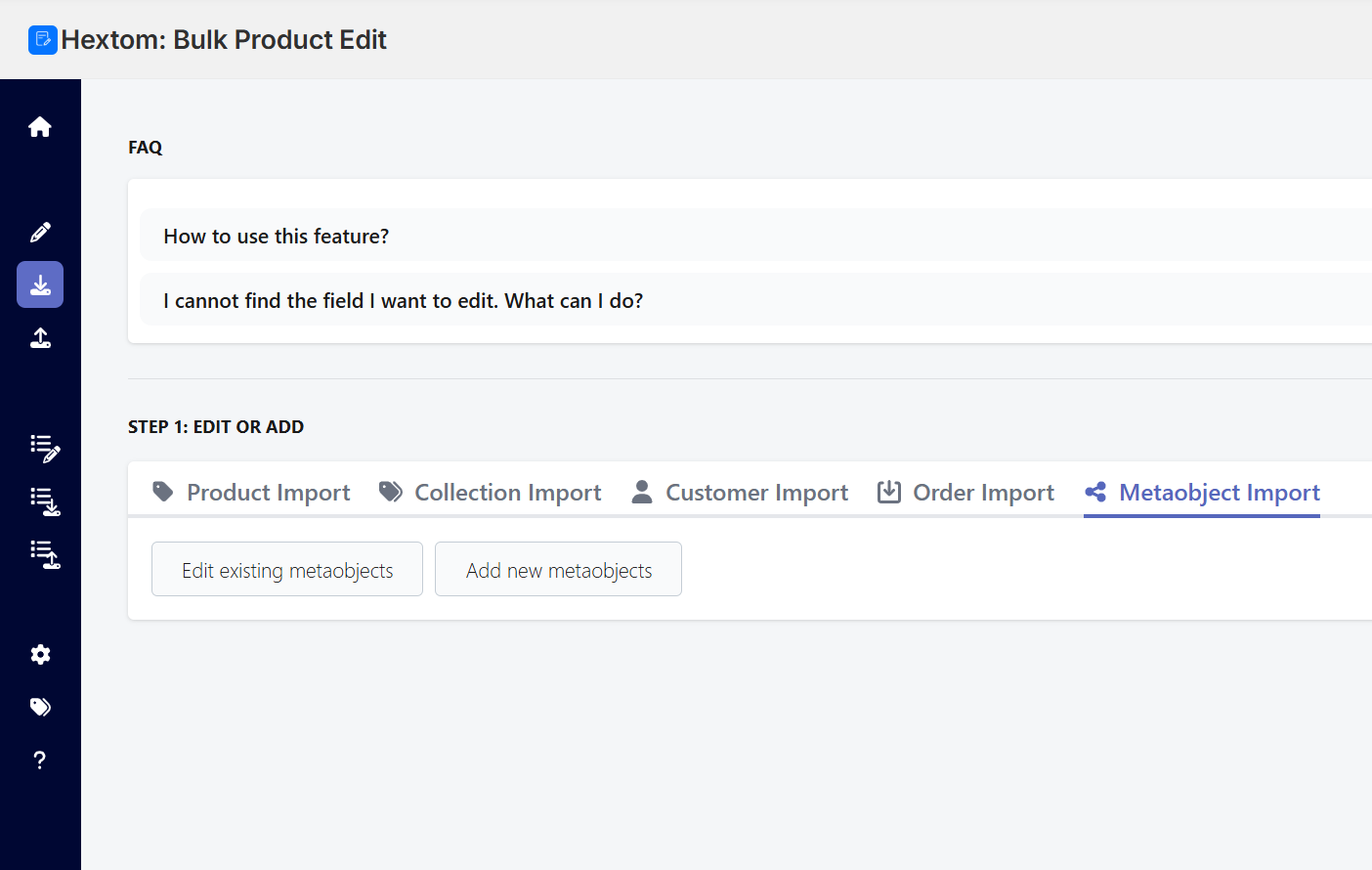
Step 1: Choose if you are Editing Existing metaobjects
Step 2: Upload your Spreadsheet
You can upload your spreadsheet to our app using 3 methods. You can upload it from your device, provide a spreadsheet URL, or provide an FTP location.
If you are submitting a spreadsheet URL, you will need to ensure that the URL provided points directly to the sheet. If you are uploading a sheet from Google Sheets, we have a short guide on how to do that, which you can find here.
If you are submitting an FTP location, you will need to ensure that the FTP location is in the format ftp://user:password@your.ftp-server.com/path/to/file.xlsx
Once you have everything set, you can click the "upload" button to proceed.

Please note that the only accepted file formats for this function are CSV and XLSX files. Any other file formats are not accepted in our app.
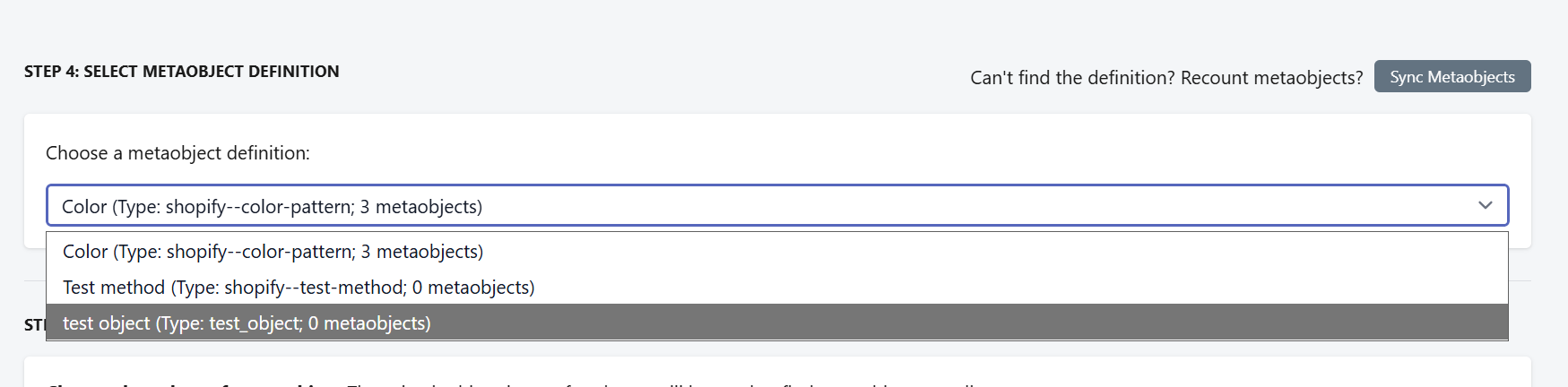
Step 4: Select Metaobject definition
Next, you will need to select which existing metaobject definition is being edited by our app. If you don't see the metaobject definition that you want, you can hit the gray "Sync Metaobjects" button to have our app scan and find any missing metaobjects.
Step 3: Map the columns
In this step, we will tell our app what data is contained in each column. One of the columns of the spreadsheet must be the "Search column." This column must contain either the Metaobject ID, Metaobject Display Name, or Metaobject Handle. In the below example, Column one is the search column, using Metaobject ID.
Then you can tell our app what data is contained in all the other columns you wish to import. The dropdown options will be contextual, and depend on the fields available in the metaobject definition. In this example, Column 2 is importing a single line text field called "test"
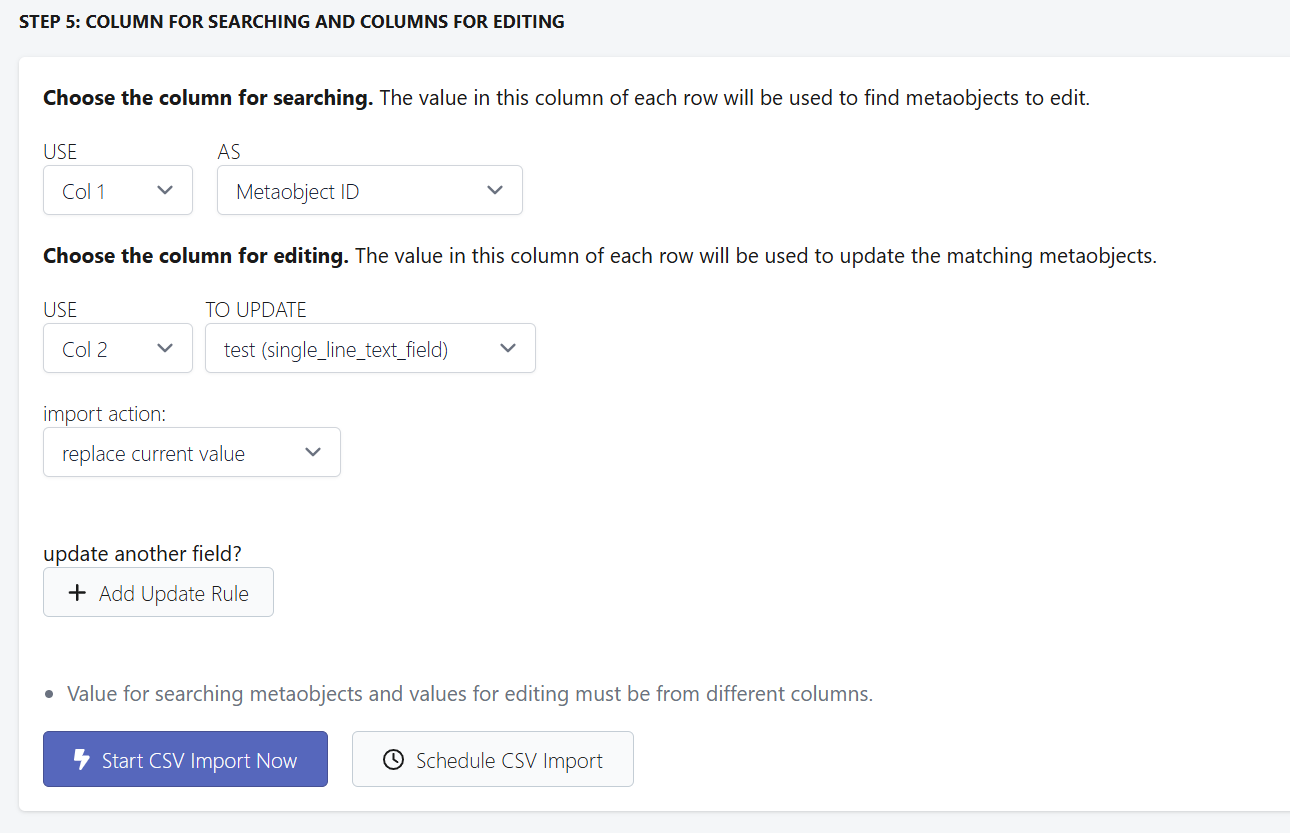
Once you have finished the mapping, you can then click the "Start CSV Import Now" button at the bottom of the page to begin the task!
CSV Exporting
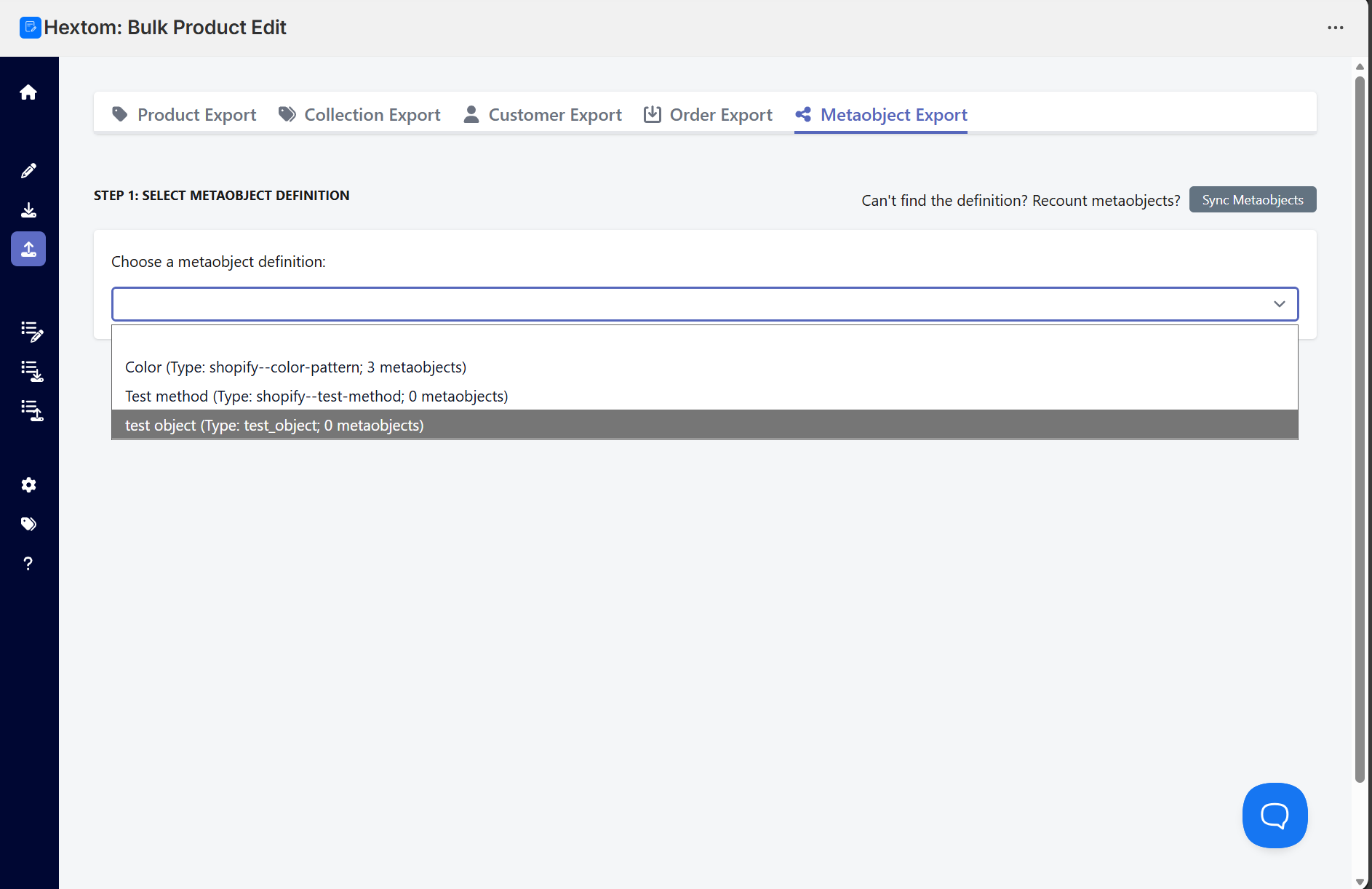
Step 1: Select which metaobject definition to export
You will need to select which existing metaobject definition is having it's meta objects exported by our app. If you don't see the metaobject definition that you want, you can hit the gray "Sync Metaobjects" button to have our app scan and find any missing metaobjects.
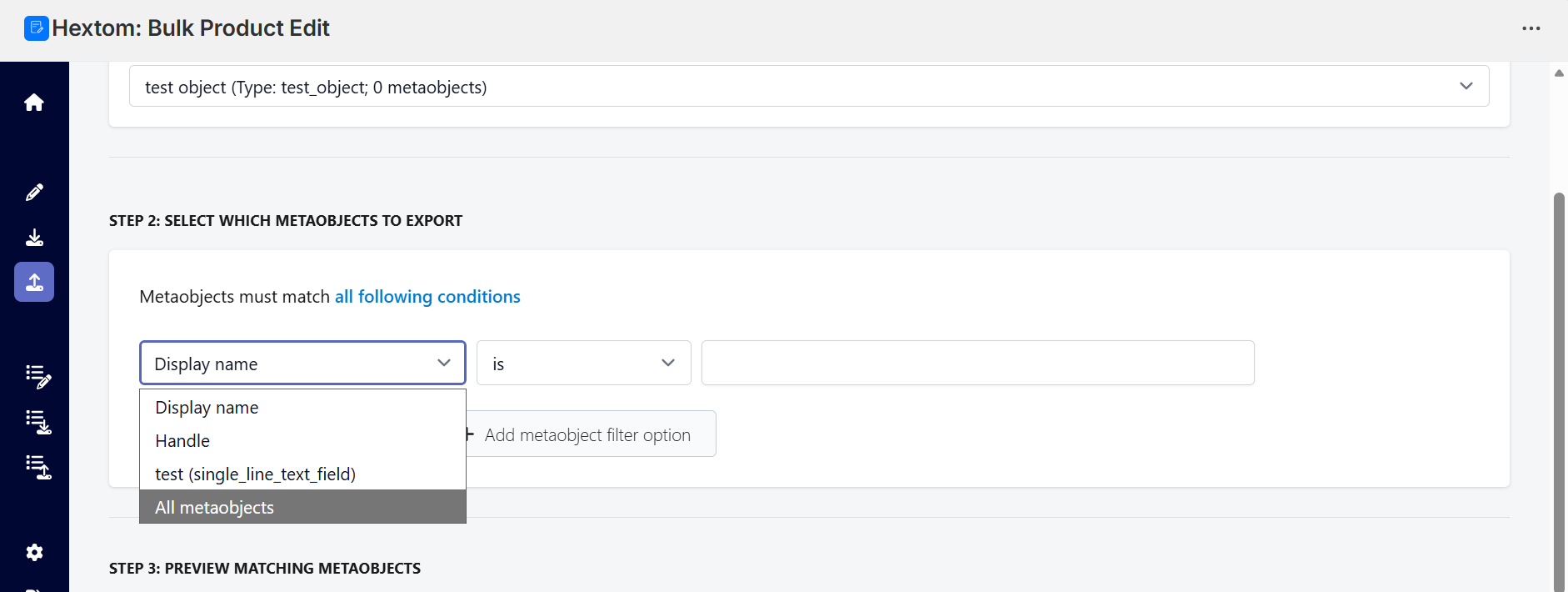
Step 2: Set up filter for what metaobjects to export
You can filter what metaobjects belonging to the definition you specified are exported in this step. For this example I will selecting "All metaobjects" to export every metaobject belonging to this definition.
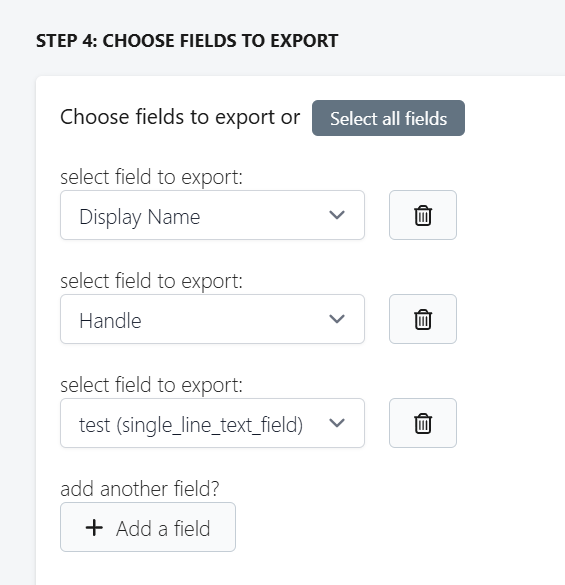
Step 3: Select what fields to export
Next, we will decide what idata to export from each of these metaobjects, or hit the grey "Select all fields" button to export everything.
Optional Step: Adjust additional settings
You can adjust the export settings using the fields below. You can control the file name and file format of the exported file, as well as email the file or upload it to an FTP server by providing the appropriate details.

Once everything is set up, you can click the "Start CSV Export Now" button to begin the export.
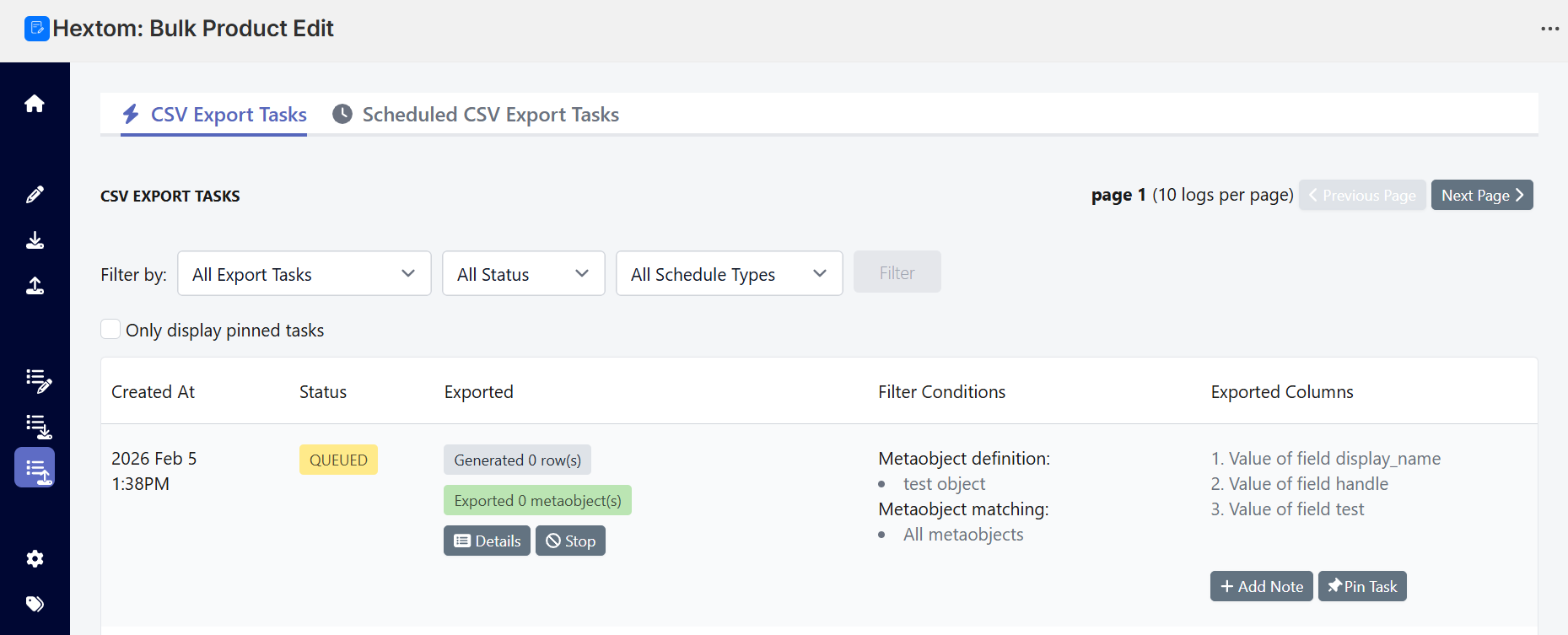
Once the export finishes, you can download the exported file by clicking on the "Exported File" section in the CSV Export task menu.
If you have any questions or concerns you can message us at help@hextom.com and we will be happy to help you!