
Tutorial on Order CSV Import & Export
The Order CSV Import & Export feature allows you to manage your store’s orders in bulk by exporting order data to a spreadsheet and importing updates back into your store. This is especially useful for updating existing orders, creating new orders, or adding draft orders in bulk.
This guide walks you through both Order CSV Import and CSV Export, explaining each step and available option.
CSV Import
1. Choose how you want to import orders
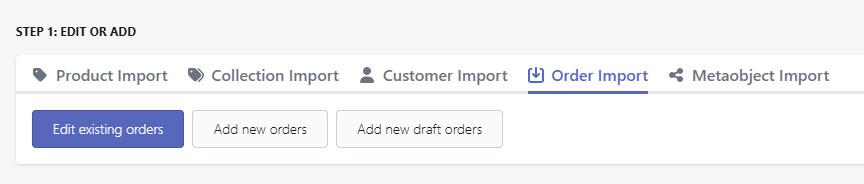
In Step 1, select how you want the app to process your file:
- Edit existing orders – Update details of orders that already exist in your store.
- Add new orders – Create new completed orders.
- Add new draft orders – Create draft orders that can be reviewed and completed later.
Choose the option that best matches your goal before proceeding.
2. Upload your spreadsheet
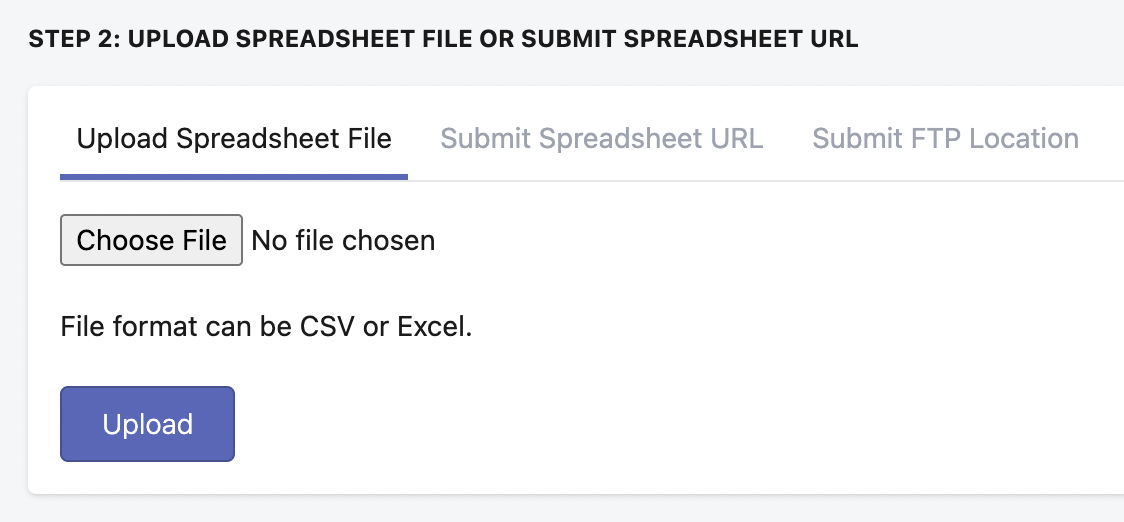
In Step 2, upload your spreadsheet using one of the following methods: Upload from your device, submit a spreadsheet URL, or submit an FTP location.
- If you are using a spreadsheet URL, make sure the link points directly to the file.
- If you are uploading from Google Sheets, please refer to our guide on exporting Google Sheets for CSV import.
- If you are submitting an FTP location, ensure it follows this format:
ftp://user:password@your.ftp-server.com/path/to/file.xlsx
Once your file is ready, click Upload button to proceed.
Note:
Only CSV and XLSX file formats are supported.
3. Review file preview
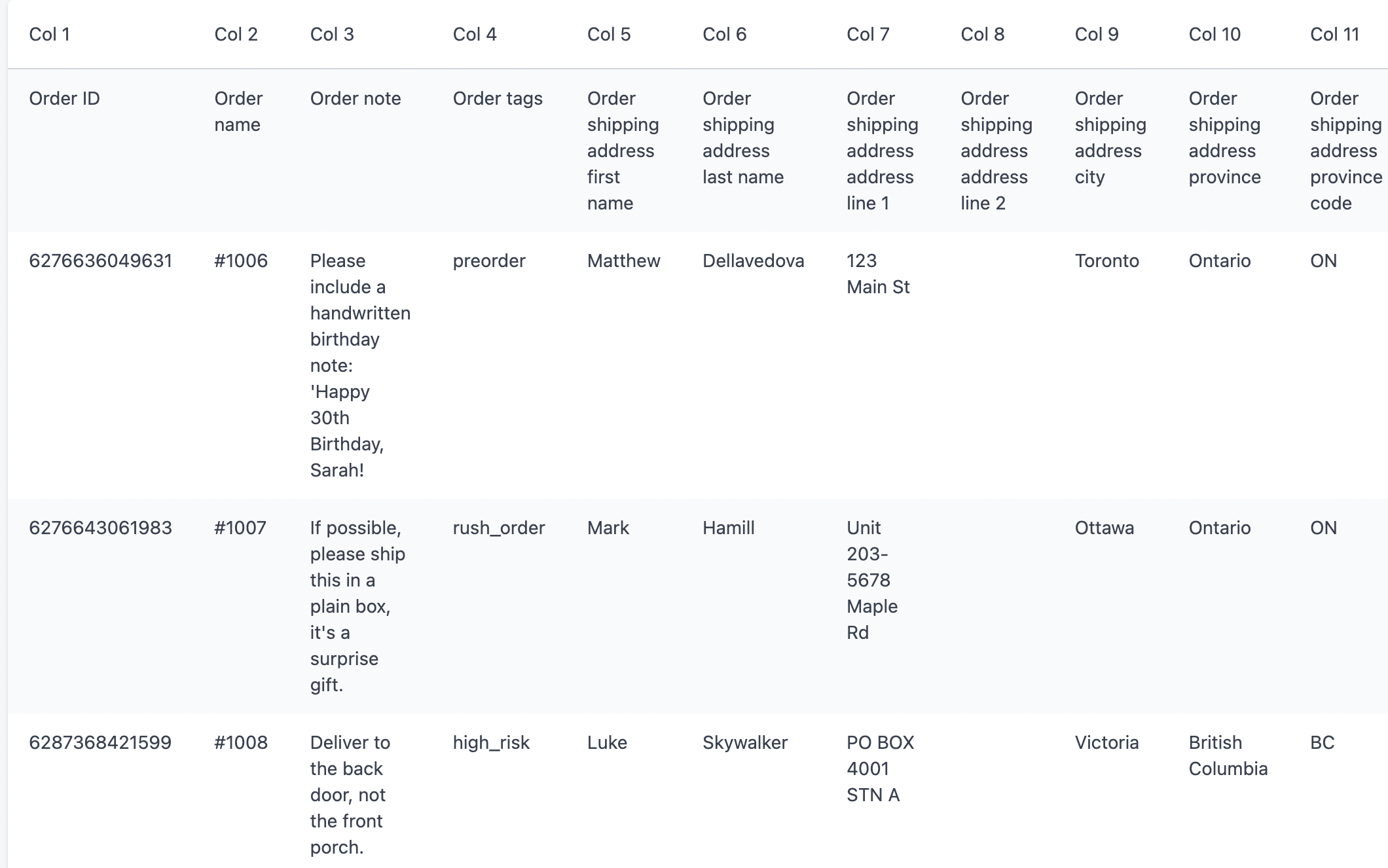
After uploading, the app will display a preview of the first few rows of your spreadsheet. This allows you to confirm that the correct file was uploaded and the data is structured as expected.
If everything looks correct, proceed to the next step.
4. Map the columns
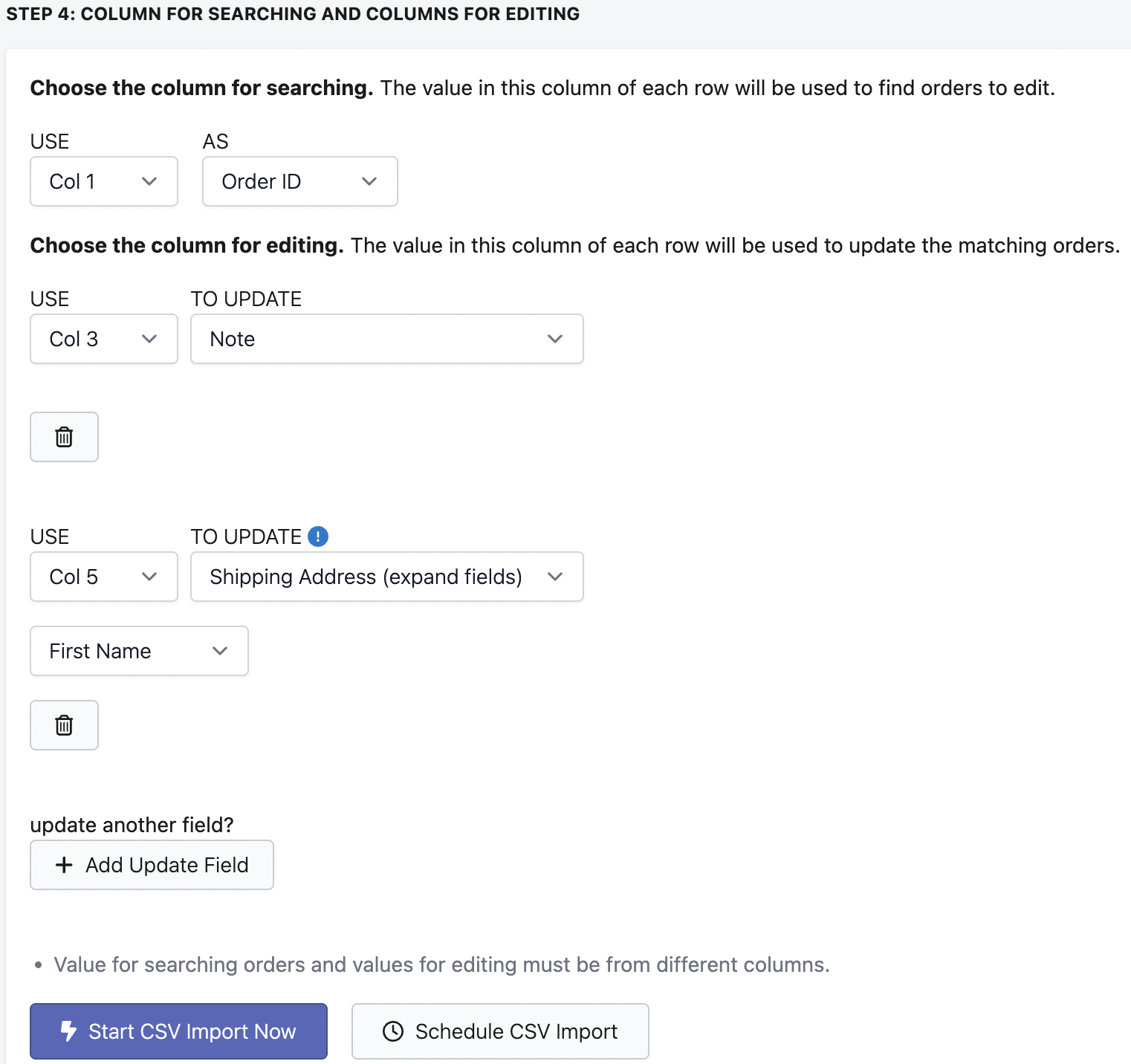
In the final step, map the columns from your spreadsheet to the corresponding order fields in the app.
- First, choose a search column to identify which orders should be edited. You may use Order ID or Order Name.
- Next, map the remaining columns to the order fields you want to import or update like notes, shipping address information (like first and last name, address, etc.), metafields, etc.
- Once all required fields are mapped, click Start CSV Import Now to begin the task.
Avoid Duplication?
If you are adding new orders, you may notice an Avoid Duplication checkbox next to it. If toggled, the import task will not add the order if the same order name already exists in the store.

CSV Export
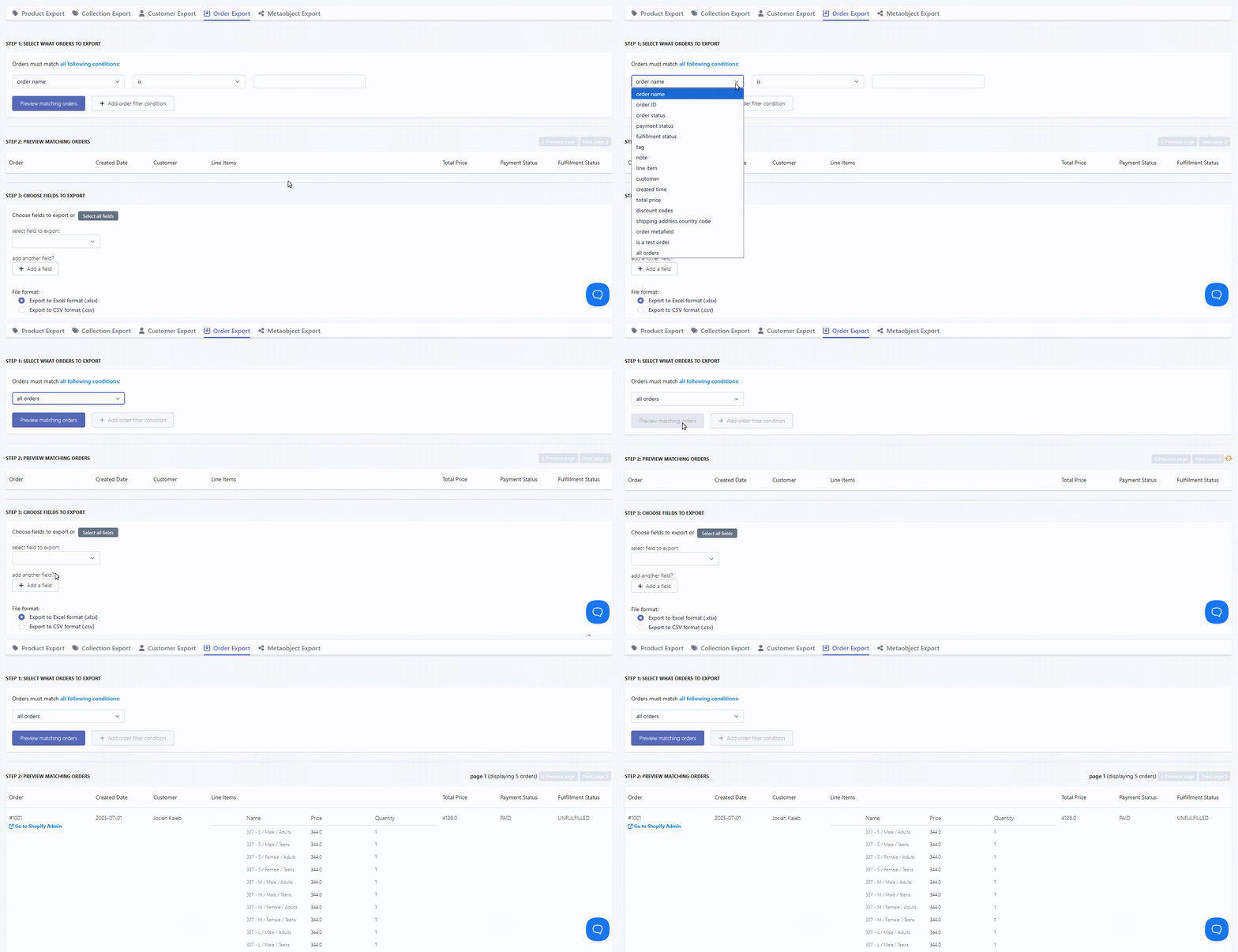
1. Set up the order filter
The first step in exporting orders is setting up filters to define which orders should be included.
You can filter by various order-related fields to narrow down your selection. A preview option is available so you can confirm that the matching orders are correct before continuing.
2. Choose the fields to export
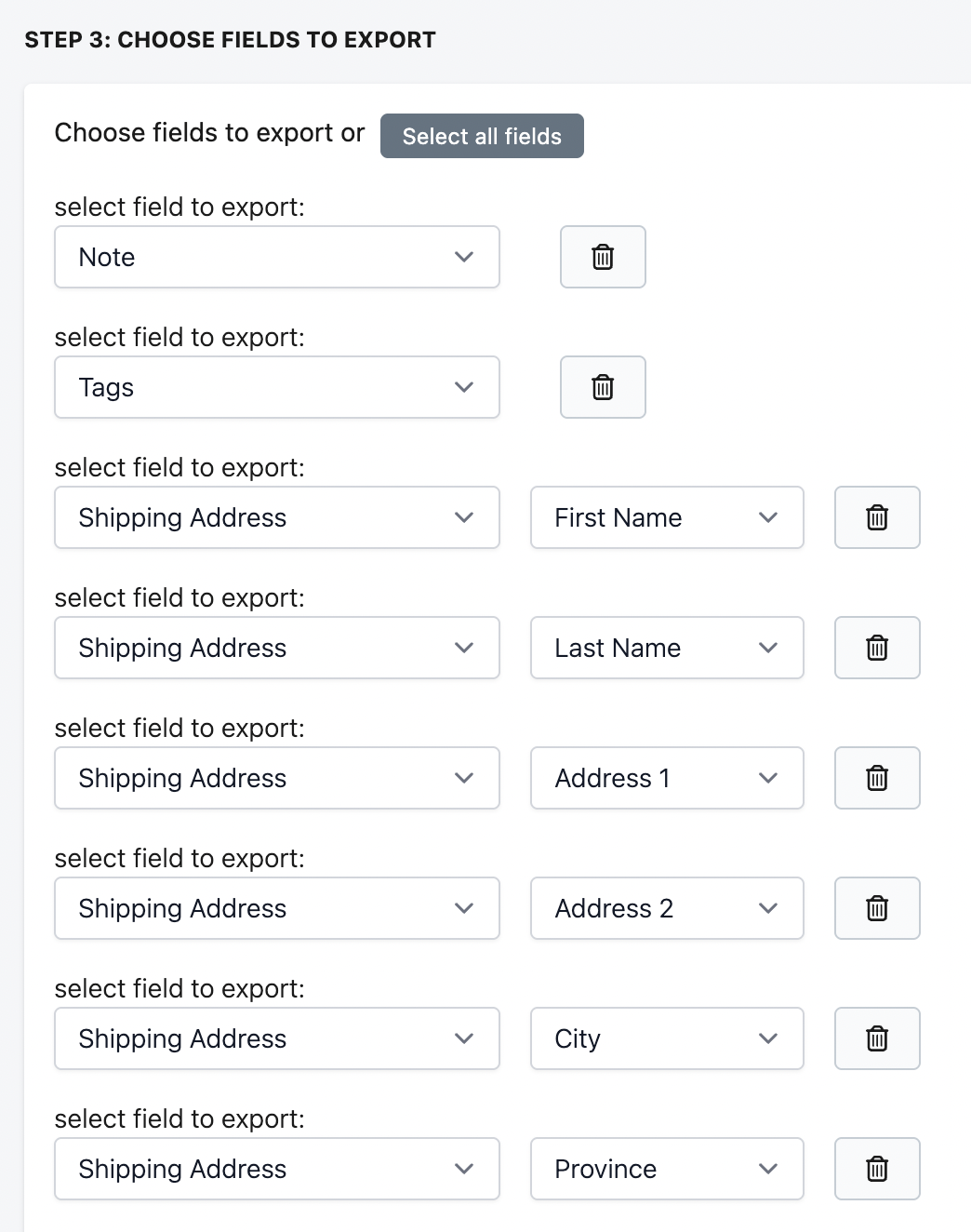
Next, select the order fields you want to include in the exported file. Order ID is always included automatically in the export task.
You may add additional fields like notes, tags, shipping address details like customer's first name, last name, and address information like the address line 1 and 2, city, province, etc.
Optional configuration
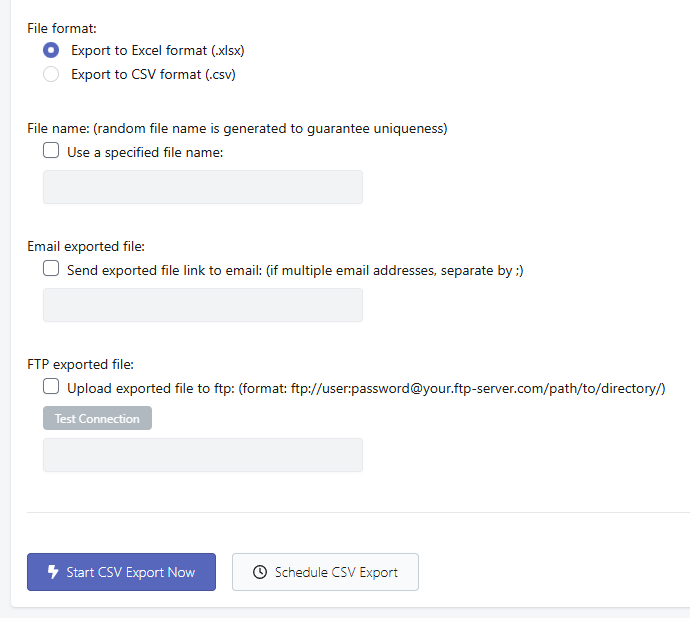
In this optional step, you can customize how the exported file is handled:
- Choose the file format: CSV or Excel (XLSX)
- Set a specific file name or leave it as a randomly generated name
- Email the exported file to a specified email address
-
Upload the exported file to an FTP server by providing the required FTP details
3. Start the export
Once everything is configured, click Start CSV Export Now to begin the export task.
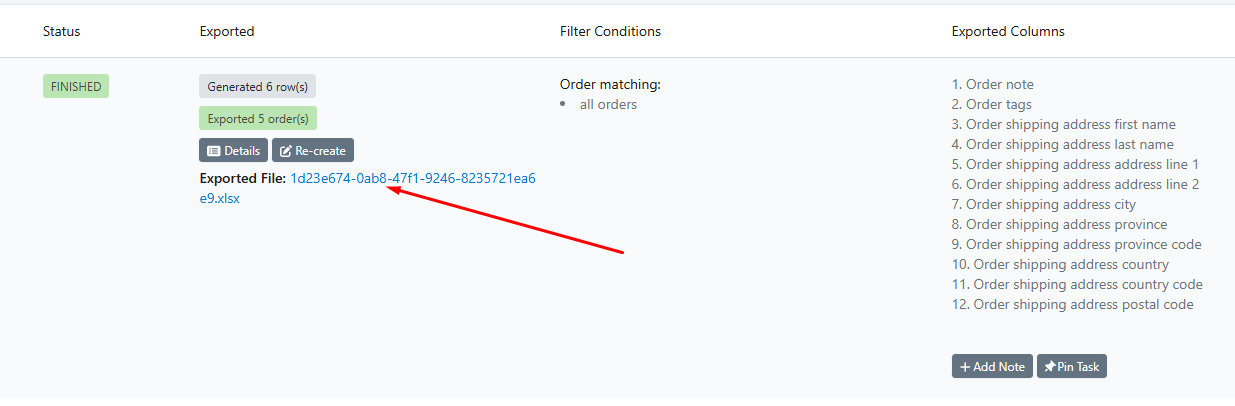
When the export is complete, you can download the file from the CSV Export Task section within the CSV Export task menu.
Need Help?
If you experience any issues or have concerns with importing or exporting orders, feel free to contact us at help@hextom.com. Our support team is available 24/7 and happy to assist!