
How to Use Discount Code Bulk Edit
The Discount Code Edit tool helps you quickly create and manage discount codes in bulk, saving time when handling large campaigns. It includes two features:
Create Discount Codes
Use this option to quickly generate a new discount group with multiple codes at once.
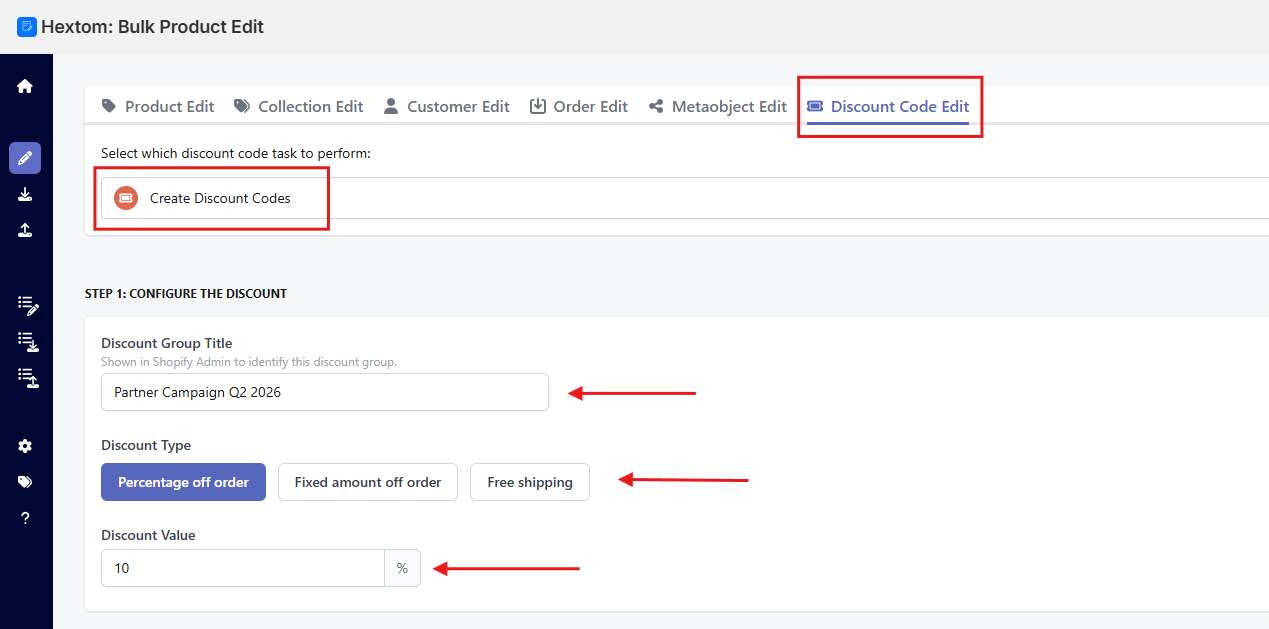
Step 1: Configure the Discount
In the Discount Code Edit tab, select "Create Discount Codes".
Fill in the following fields:
-
Discount Group Title
Enter a name for your discount group as it will appear in Shopify Admin (e.g. Partner Campaign Q2 2026).
- Discount Type Choose the type of discount you want to offer:
- Percentage off order
- Fixed amount off order
- Free shipping
-
Discount Value
Enter the value of the discount (e.g. 10 for 10% off).
Step 2: Generate or Specify the Codes
Choose how you want to create your discount codes under "How to generate codes":
- Generate random — Automatically creates unique codes for you
- Specify codes — Manually enter your own codes
If you select Generate random, you can customize:
- Number of Codes — How many codes to generate
- Code Length — Choose between 6–16 characters
- Prefix (Optional) — Add a prefix to each code (e.g. PARTNER-)
- Suffix (Optional) — Add a suffix to each code (e.g. -2026)
A preview example will help you see how your codes will look.

Step 3: Set Schedule and Limits
Control when and how your discount can be used:
- Starts At — Set when the discount becomes active
Optional settings:
- Expiry date — Leave unchecked if you want codes to never expire
- Limit usage per code — Leave unchecked to allow unlimited usage
- Minimum purchase requirement — Leave unchecked if no minimum order is needed
- Apply only to selected products or variants — Leave unchecked if you want the discount code to apply to all products
Click "Start Task Now" to generate your discount codes.

Add Codes to Existing Discount
Use this option to easily expand an existing discount group with new codes.
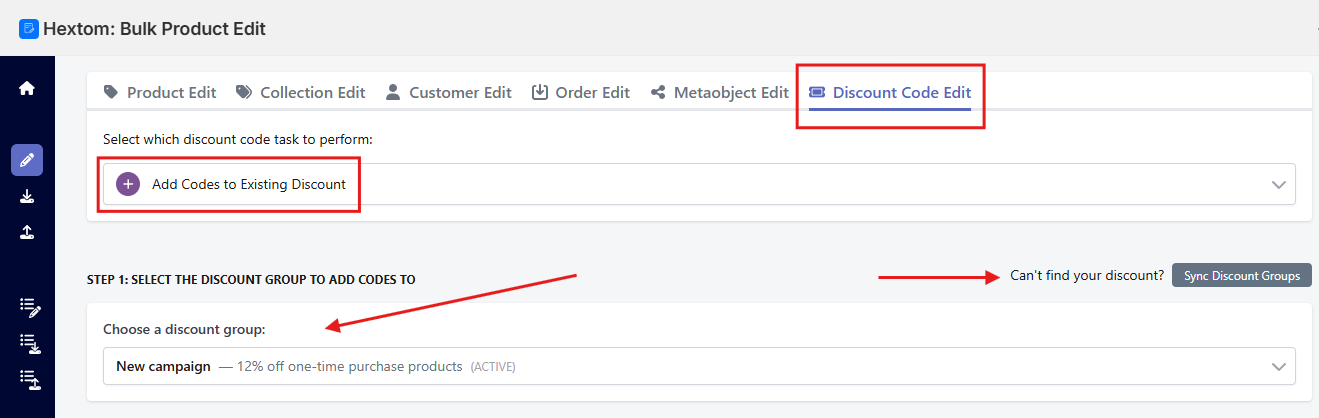
Step 1: Select Your Discount Group
In the Discount Code Edit tab, select "Add Codes to Existing Discount"
Then:
- Select the discount group from the dropdown under "Choose a discount group"
-
If your discount isn't listed, click "Sync Discount Groups" to refresh it
Step 2: Generate or Enter Codes
Choose how you want to add new codes:
- Generate random — Automatically creates new unique codes
- Specify codes — Manually enter the codes you want to add
If you select Generate random, you can configure:
- Number of Codes — How many codes to generate
- Code Length — Between 6–16 characters
- Prefix (Optional) — Add a prefix (e.g. PARTNER-)
- Suffix (Optional) — Add a suffix (e.g. -2026)
A preview example will show how the codes will look. Then click "Start Task Now" to add the new codes to your existing discount group.

Need Help?
If you have any questions, please contact us at help@hextom.com