
Clone Variants and Options from a Selected Product
This feature will clone all options and variants from a selected product to the targeted products. This is particularly useful if you want the new products to inherit the same prices and attributes as the base product.
Things to Know Before You Start
- Running this task will delete and replace the existing options and variants on targeted products with those from the selected product.
- Once a Shopify store reaches 50,000 product variants, the ability to add new variants becomes limited to 1,000 per day. If this limit is exceeded, the task will be throttled and will automatically resume after 24 hours when the limit resets. This is a restriction imposed by Shopify and cannot be bypassed by the app.
Steps:
-
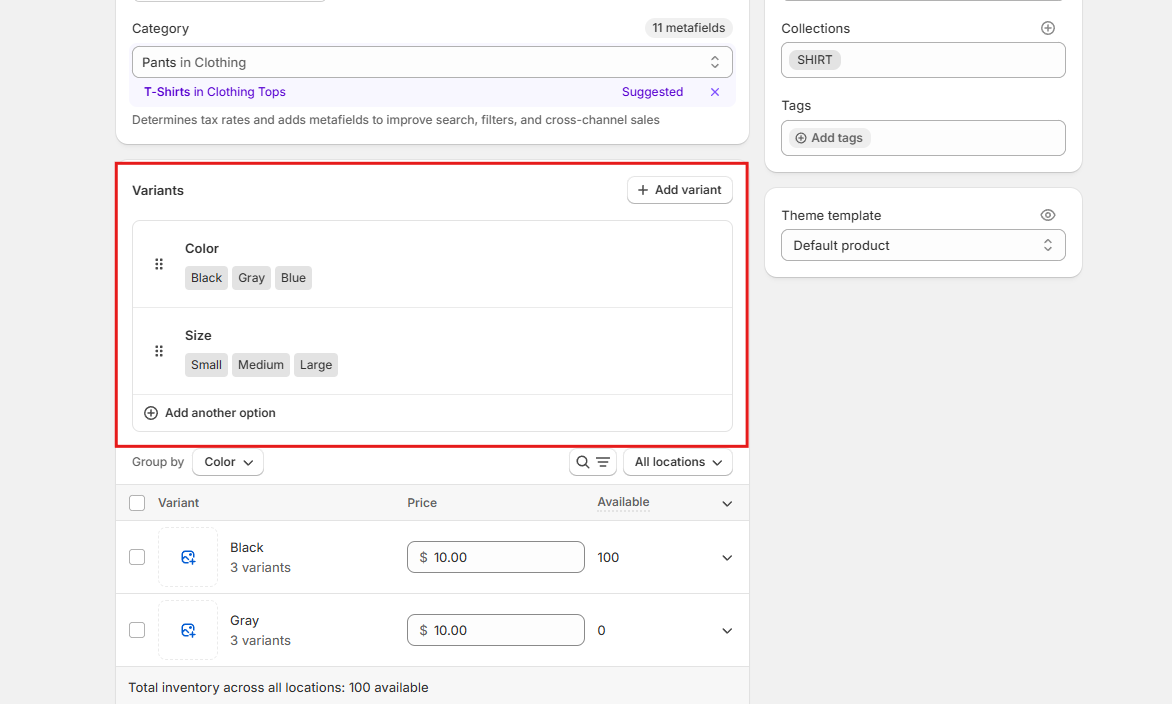
Add all the new options and variants you want to a single product. (If you don't already have a product you want to clone)
-
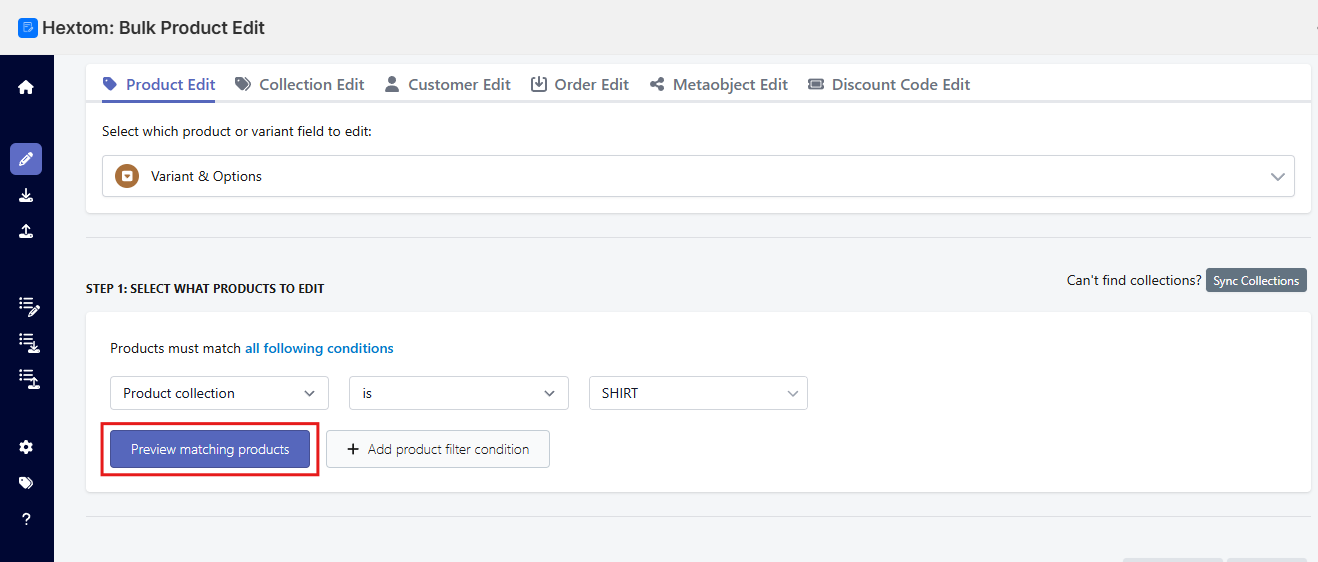
Go to the bulk edit page and select the variants & Options field. Then set the condition for the product filter to select the products you want to edit and add a variant. You can filter by collections, product ID, product title, and more. Click the button Preview Matching Products to see which products match your filter. In this example, we'll select the "SHIRT" collection as our filter.
-
Select clone variants and options from a selected product in the bulk edit options, then select the product you want to copy the variants from.
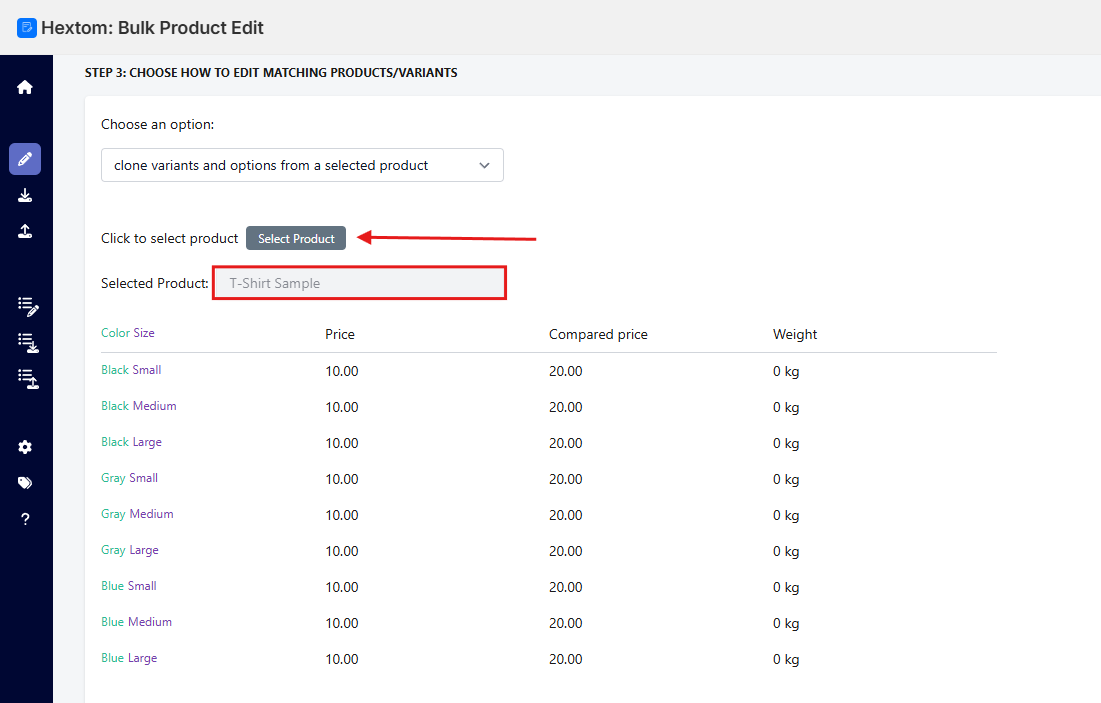
In this example, we’ve chosen the T-Shirt Sample, which has Small, Medium and Large sizes, and the colors Black, Gray, and Blue. We want to copy these variants to our SHIRT product collection.
-
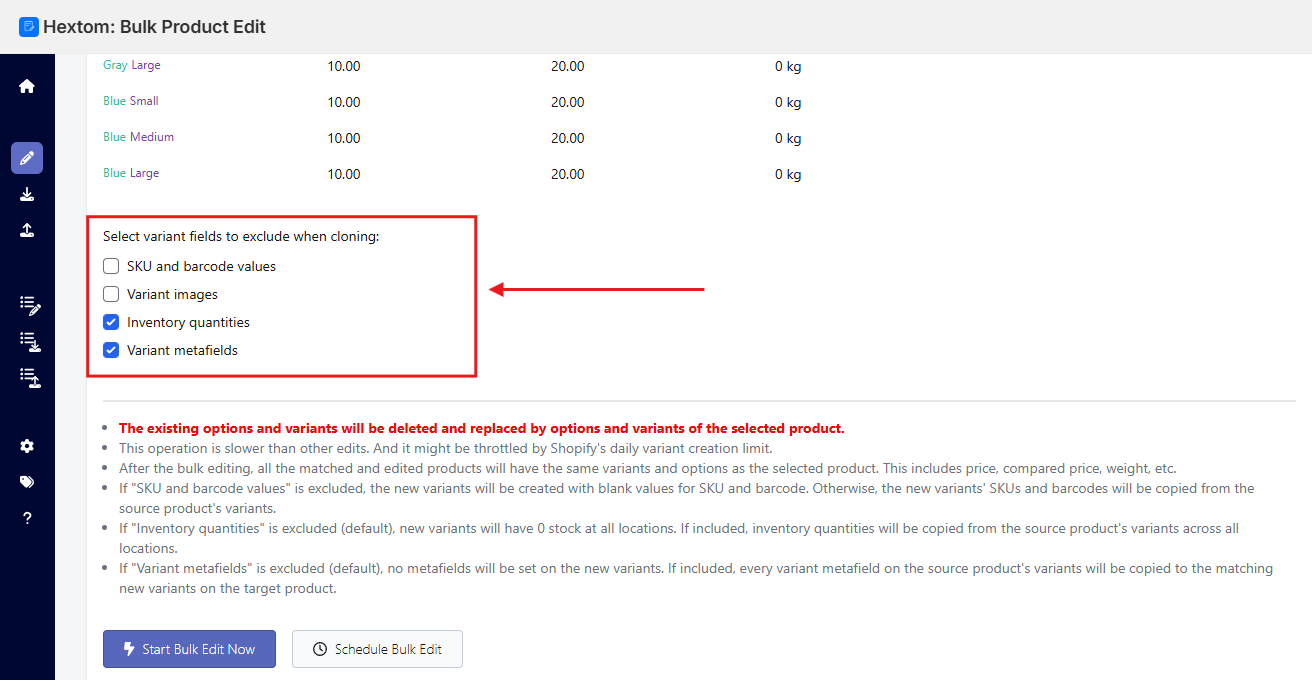
Use these checkboxes to select which variant details, such as SKUs and barcodes, images, or inventory levels, should be excluded from the cloning process.
-
Then click the Start Bulk Editing button to begin adding the variants. Wait for the task to finish.


Once the task is finished, all the edited products will have the same variants and options as the selected product, including attributes such as price, compare-at price, and weight.

- Adding Variants: The app can only add variants that already exist within the selected Category Metafield/Metaobject.
- Cloning Variants: When cloning to a new product, the resulting variants will be created as standard options and will not be automatically linked to a Shopify Category Metafield.
For more details on how to edit variants with category metafields, please check this relevant guide.
Need Help?
If you have any questions, please contact us at help@hextom.com