
How to Export Abandoned Checkouts
The Abandoned Checkout Export feature allows you to export abandoned checkout data from your Shopify store into a CSV or Excel file. This helps you review incomplete orders and analyze customer checkout behavior.
An abandoned checkout refers to a checkout session where a customer added products to their cart and proceeded to checkout but did not complete the purchase.
How to Export Abandoned Checkouts
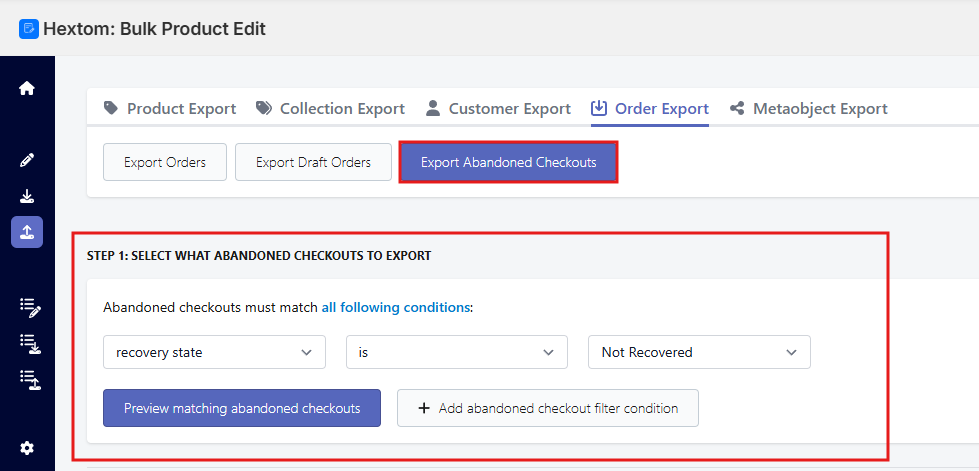
- Go to the CSV Order Export page and select Export Abandoned Checkouts. Set up filters to select which abandoned checkouts you want to export.
-
Then click preview matching abandoned checkouts.
-
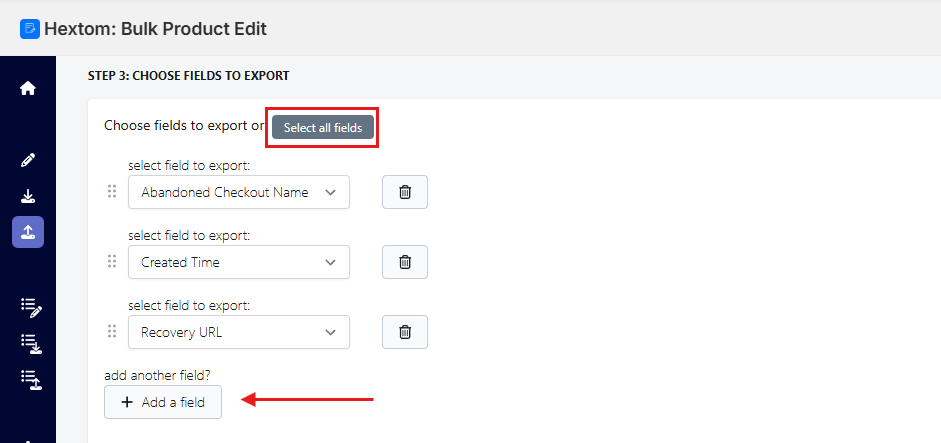
Choose the fields you want to export, or click Select All Fields to automatically include all available fields.
-
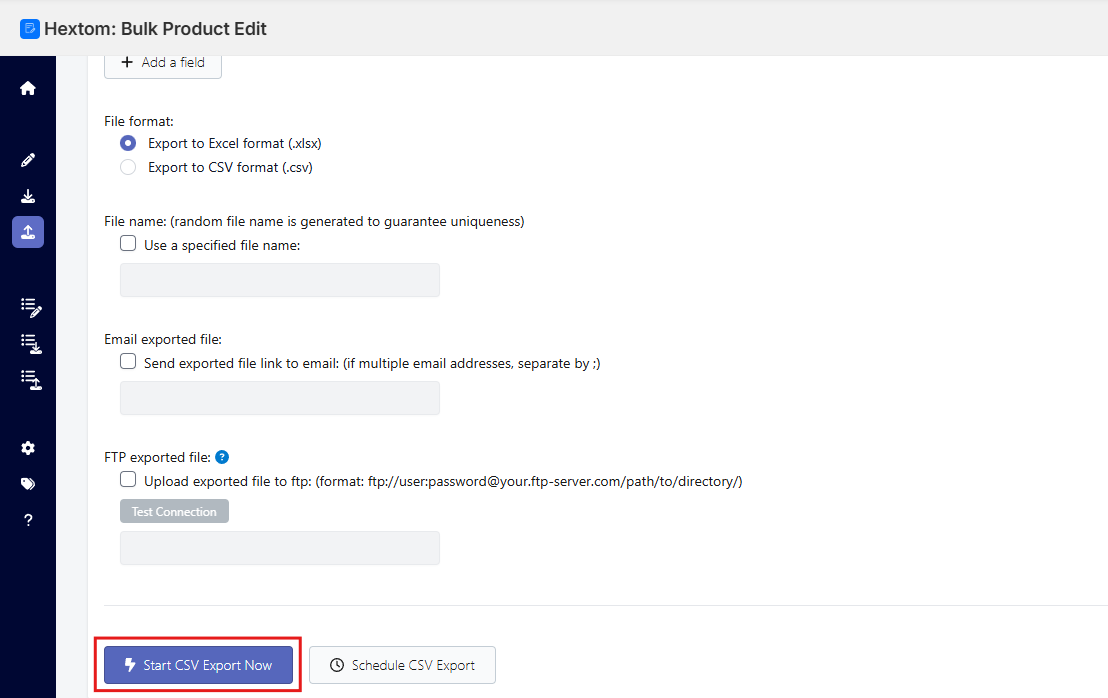
Optionally, you can configure additional settings as needed. Once ready, click Start CSV Export Now to begin the export task.
Export Fields
The exported file includes the following fields:
- Abandoned Checkout Name: The identifier/name of the abandoned checkout session.
- Note: Any internal or Shopify-generated notes related to the checkout.
- Created Time: The time when the checkout was created.
- Completed Time: The time when the checkout was completed (if applicable).
- Line Items: The products included in the abandoned checkout.
- Customer First Name: Customer's first name (if provided).
- Customer Last Name: Customer's last name (if provided).
- Email: Customer email address used during checkout.
- Billing Address: Full billing address entered during checkout.
- Shipping Address: Full shipping address entered during checkout.
- Total Discount: Total discount applied to the checkout.
- Discount Codes: Any discount codes used during checkout.
- Total Tax: Total tax amount applied to the checkout.
- Total Price: Final total value of the checkout.
- Recovery URL: A direct link to return customers to their abandoned checkout.
Need Help?
If you have any questions, please contact us at help@hextom.com