
Using CSV to Import/Export Fulfillment Tracking Information
You can now use CSV features in Bulk Product Edit to manage tracking information for order fulfillments. This includes both adding tracking details to fulfill orders and editing tracking information for existing fulfillments.
In this article:
- Understanding Fulfillment Orders and Shopify Fulfillment Hierarchy
- Export Order Fulfillments
- Edit Tracking Info for Existing Fulfillments
- Add Tracking Info
Understanding Fulfillment Orders and Shopify Fulfillment Hierarchy
When an order is placed in Shopify, the system automatically organizes the items into one or more FulfillmentOrder objects. A fulfillment order is simply Shopify's internal "work assignment"—it tells a specific location (or fulfillment service) which items it is responsible for shipping.
For example, if items in an order are stocked in different locations, Shopify creates separate fulfillment orders for each location.
Although “fulfillment order” is not explicitly labeled in the admin, you’ll see its effect through item groupings by location on the order page.
Key points:
- An order can have multiple fulfillment orders
- A fulfillment order can have multiple fulfillments
- Each fulfillment can have multiple fulfillment records (though usually only one is used)
Each tracking record may include:
- Tracking number or tracking URL (at least one required)
- Tracking company (optional)
Export Order Fulfillments

The exported spreadsheet includes the following options:
- Fulfillment order ID
- Fulfillment order assigned location name
- Samples of fulfillment order line items,
- Fulfillment ID
- Fulfillment name
- Fulfillment status
- Fulfillment tracking company,
- Fulfillment tracking number
- Fulfillment tracking URL, and
- Fulfillment company
In the spreadsheet, you will find the fulfillment exported in the following structure: the top-level columns in the spreadsheet will include all fulfillment orders of the order, followed by their assigned location names and a selection of some line items in each specific fulfillment order to help you identify the fulfillment order from others in the same order.
Next, it lists all fulfillments of the fulfillment order, including their status. The following columns will contain all fulfillment tracking information records of the fulfillment.
The Bulk Product Edit app will only export fulfillment orders that are managed by the merchant and will be fulfilled from one of the warehouses or locations fully managed by your merchandise.
Fulfillment orders assigned to external fulfillment services or third-party apps are not included in the generated spreadsheet.
Edit Tracking Info for Existing Fulfillments
To set up this task, the spreadsheet must include:
- Order locator (Order ID or Name)
- Fulfillment ID
- One or more tracking fields:
- Tracking company
- Tracking number
- Tracking URL

Select the column containing your order locator to search for the order, then select the columns for the tracking info fields to edit. Choose “Edit Tracking Info (expand fields)” for the columns.
The form will then prompt you to select the column for the fulfillment ID and indicate whether to notify the customers who placed the orders. This prompt will appear for each of the columns where tracking info is being edited, but the form will ensure that the values remain consistent across all these columns.
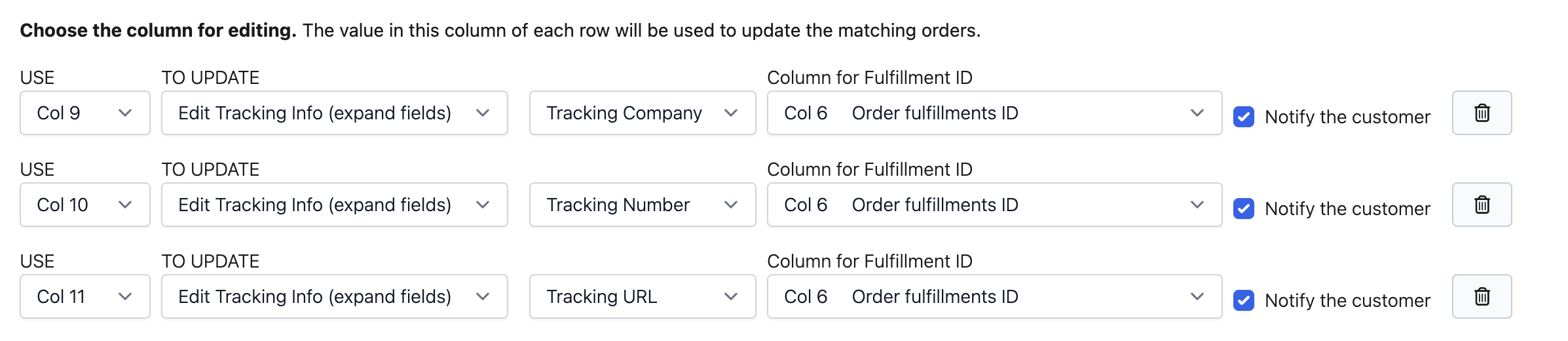
The edits will be applied to the first tracking information record for the fulfillment with the matching fulfillment ID. None of the three tracking info fields are required, but you must ensure that the tracking information record does not contain only a tracking company value after the edit.
Add Tracking Info
To set up the task, the spreadsheet must include:
- Order locator (Order ID or Name)
- Fulfillment order ID
- At least one:
- Tracking number
- Tracking URL
- (Optional) Tracking company
Select the column of your order locator to search for the order, and then select the columns for the tracking info fields you want to edit. Choose “Add Tracking Info (expand fields)” for these columns.
The form will then prompt you to select the column for the fulfillment order ID and indicate whether to notify the customers who placed the orders. This prompt will appear for each of the columns selected for editing tracking info, but the form will ensure that the values remain consistent across all these columns.
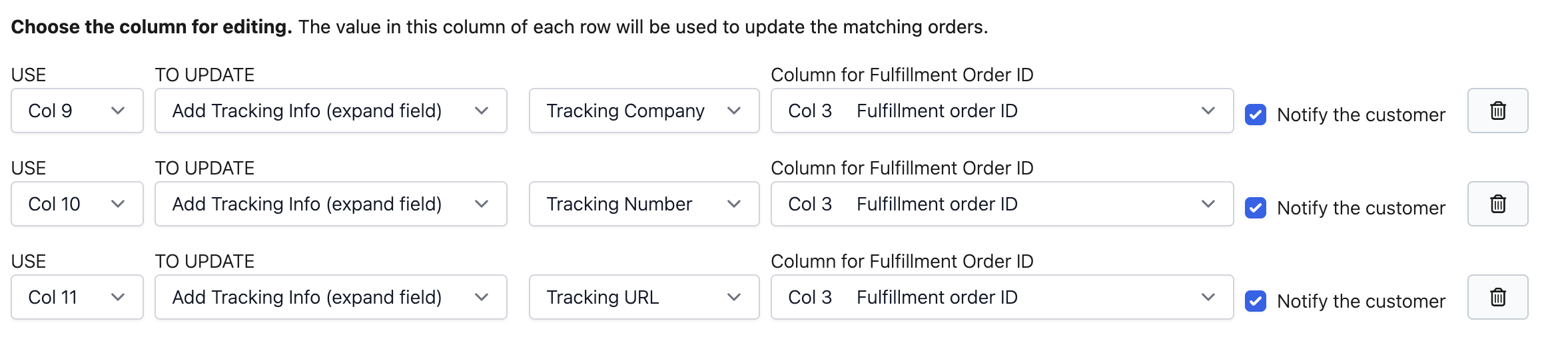
Bulk Product Edit will then use the values captured in the spreadsheet to create a fulfillment with tracking information for the fulfillment order with the matching ID. To create a fulfillment, you should always provide at least one of the following: the tracking number or the tracking URL.