
Getting Started with Metaobject Edit
This function will allow you to bulk edit your metaobject values. This guide will introduce the metaobject edit function in Bulk Product Edit, as well as the features available in this function.
Before getting started, please ensure that the metaobject definitions have been created on your store. If you require additional information on metaobjects and what they can do for your store, Shopify has an article on metaobjects, which you can find here
You can find our metaobject editing under the Bulk Metaobject Edit tab on the homepage, or on the Bulk Edit page.
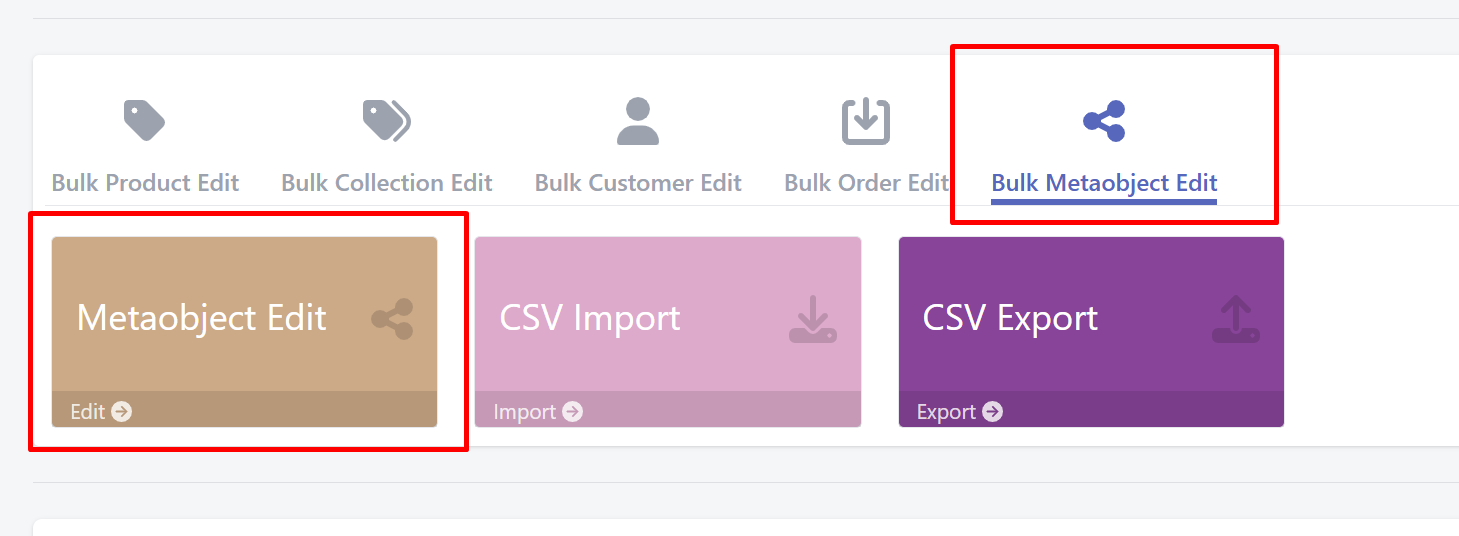
Step 1: Choose the Metaobject Definition
You can choose the metaobject defintion to edit from the dropdown. For this bulk edit, I will be editing the metaobject called test.

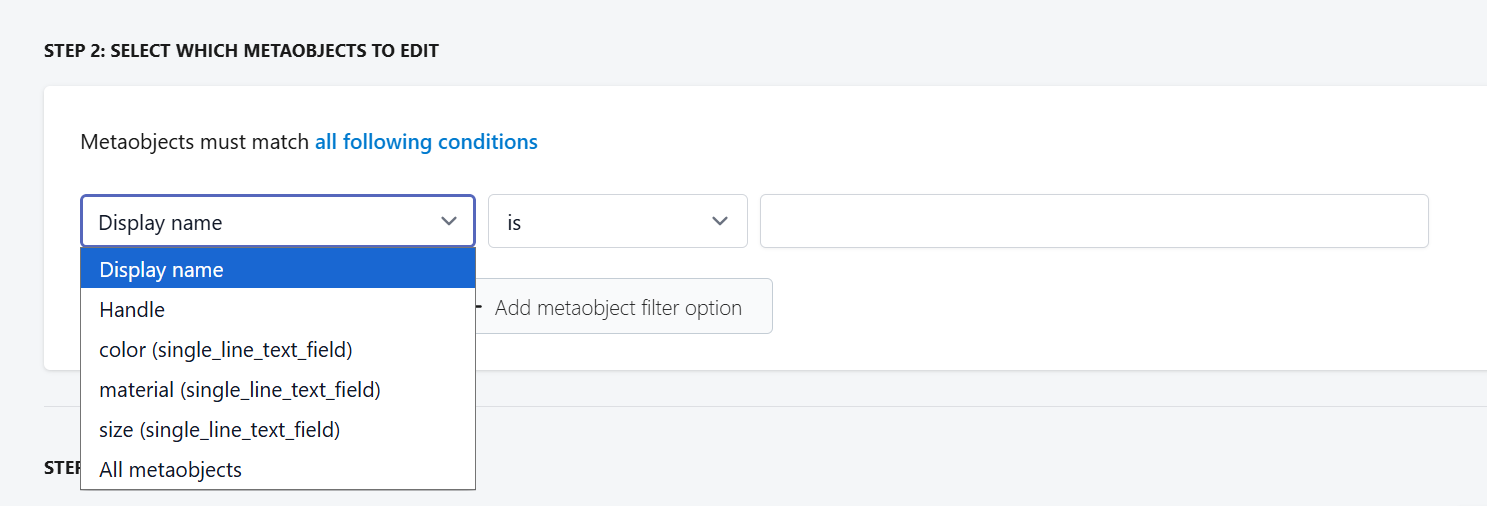
Step 2: Filter for the Metaobjects to Edit
You can create a filter for the metaobjects that you are looking to edit using our apps filter conditions. You can filter by the Display name, Handle, or by looking for a specific value in any of the metaobject fields.
Step 3: Select How to Edit the Metaobjects:
You can choose from the dropdown below:
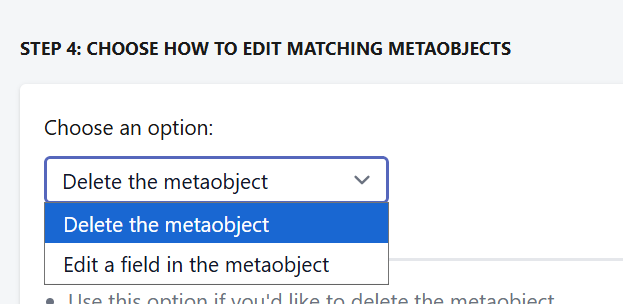
Delete the metaobject - This function will delete any metaobjects that match the given value. Please note that this will delete the entire entry from your store, so please ensure that the correct metafields are selected with the preview before running this function.
Edit a field in the metaobject: This function will allow you to update the metaobject handle, or any of the metaobject fields with the following options:
- Handle
- Update, Find and replace, Find and remove, Prepend text, Append text
- Metaobject Fields
- Update, Find and replace, Find and remove, Prepend text, Append text, Set value to null (clear metaobject field)
Once the task is set up, you can click the Start Bulk Edit Now button, and the app will execute the task for you.
If you have any further questions, please feel free to reach out to us anytime at support@hextom.com.