
Tutorial on Editing Order tags
This function will allow you to edit your order tags, by either adding text to the title, or finding text to remove/replace. You can do this by following the steps below.
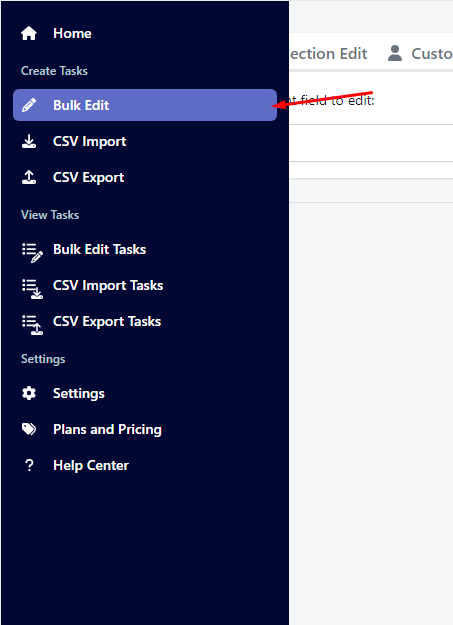
1. Select the Bulk edit that you want to run.
The first step is to go to "Bulk Edit" In the app then click the "order edit" From here, simply choose "Order Tag"

2. Set up the order filter
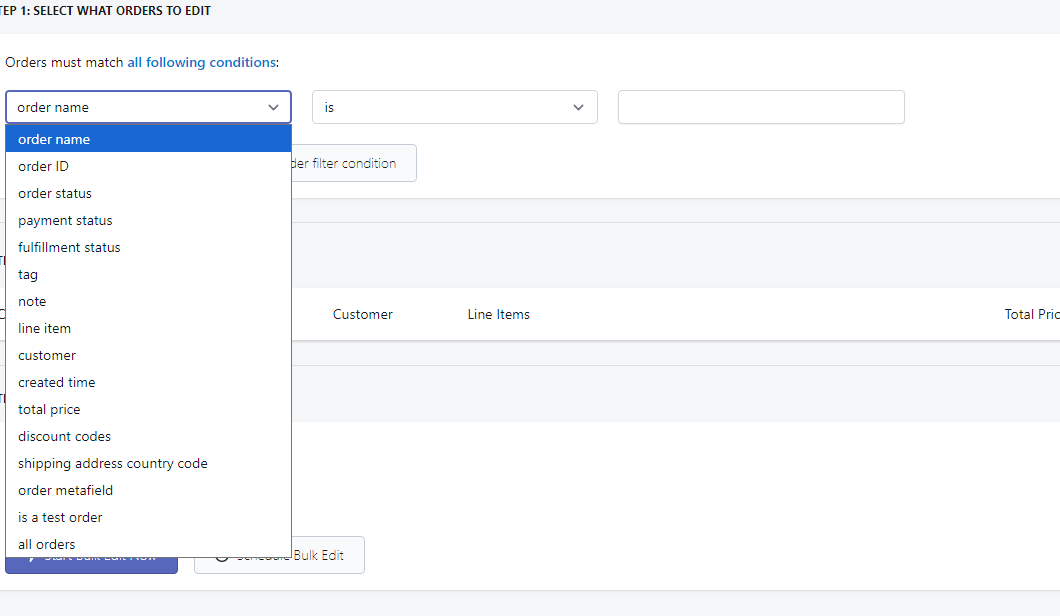
The second step to setting up a bulk order edit is to set up the filters. Our app has many fields that you can filter from, which can help you narrow down the order that you would like our app to edit. Our app also comes with a preview function, so that you can verify if the orders found are correct.
3. Select the method of editing
You can choose the function you want to use to edit your order description with, and set up the function as needed. Our app has the following options:

For your reference, there's a short description on what these options does.
Add a tag
Adds a specific tag to all selected orders without removing existing tags.
Remove a tag
Removes only the tag you specify from the selected orders .
Replace a tag
Finds an exact tag and replaces it with a new one.
Clear all tags
Removes all tags from the selected orders .
Once done, You can simply click "Start bulk edit now" and it should edit the order tags.
If you have any other problem/concern regarding the app, please do not hesitate to contact us at help@hextom.com.