
Tutorial on Editing Order Metafields
This function will allow you to edit your order metafields. This will allow you to add custom content to your orders to fit your stores needs.
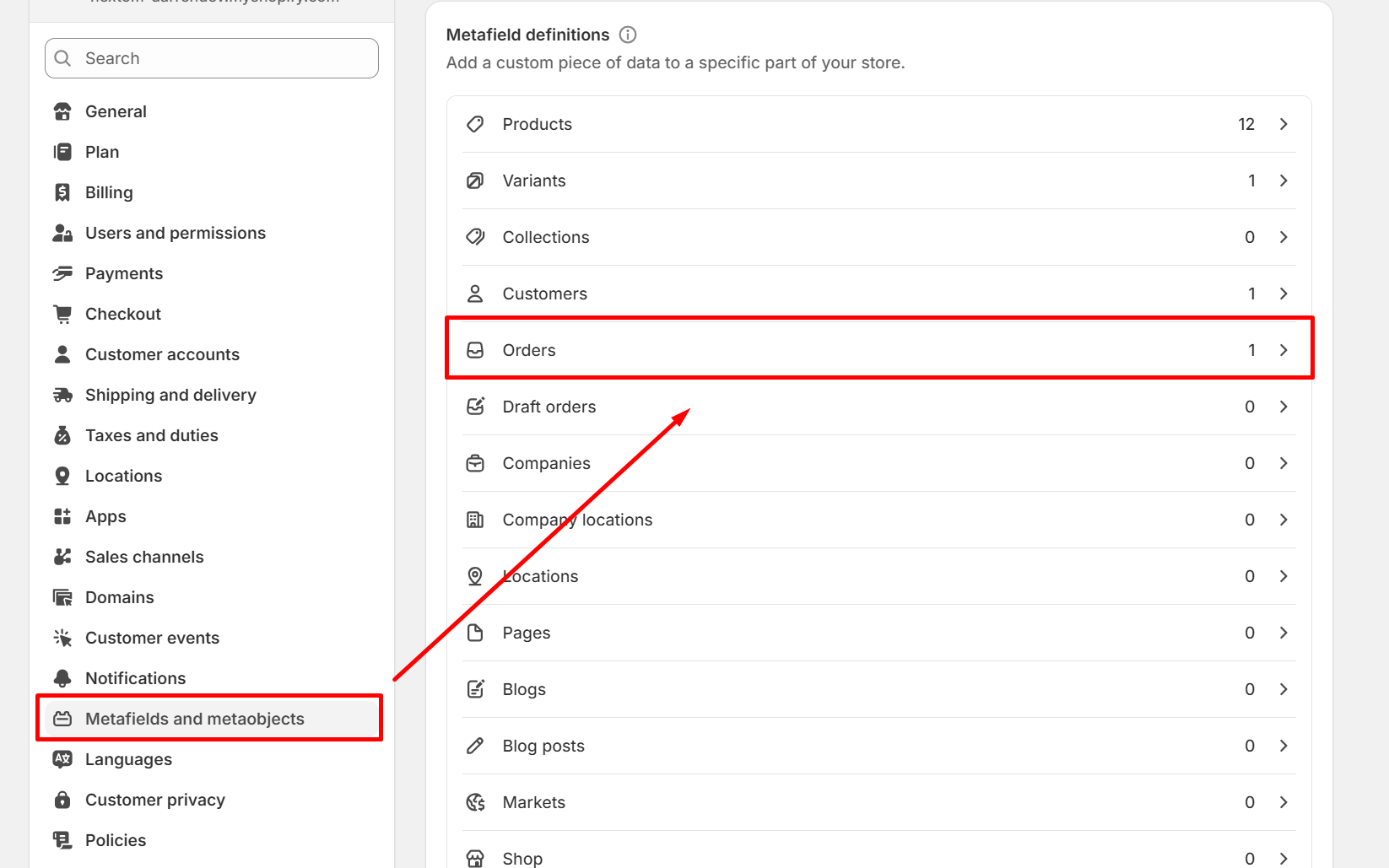
In order to start editing your metafields, you will first need to find the namespace, key and metafield type, which you can do on the metafield definition. You can find the metafield definition by clicking into the metafield you are looking to edit in the Metafields and metaobjects section of the Shopify settings page.
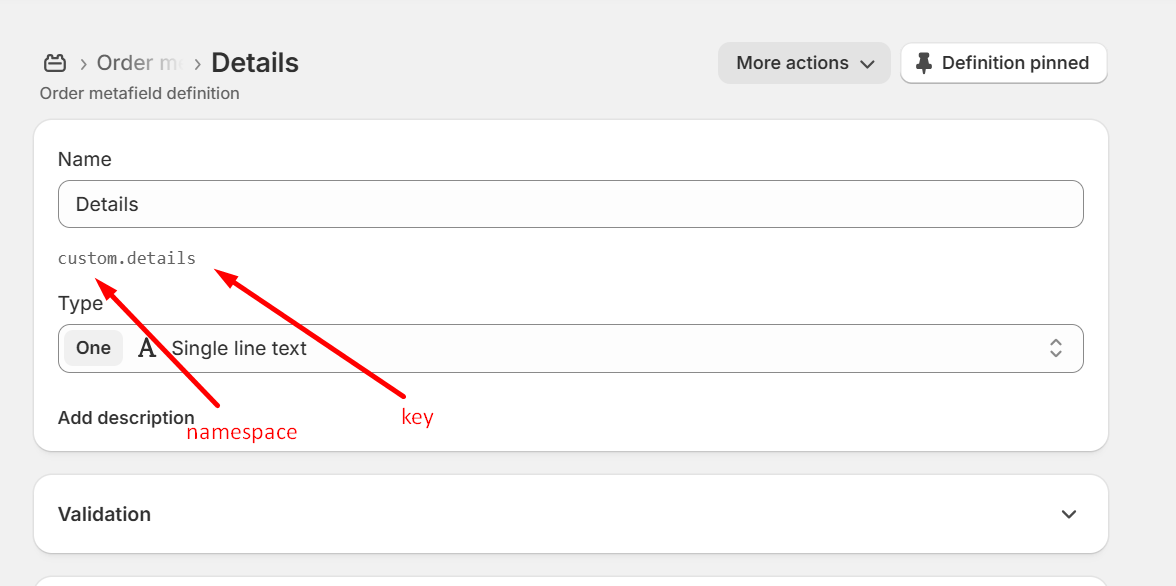
For example, the namespace in this metafield is "custom", the key is "details", and the type is a single line text.
Once you have this information, you can begin to bulk edit your metafields. You can edit your metafields using the following steps:
1. Set up the order filter
The first step to setting up a bulk edit is to set up the filters. Our app has many fields that you can filter from, which can help you narrow down the orders that you would like our app to edit. Our app also comes with a preview function, so that you can verify if the orders found are correct.
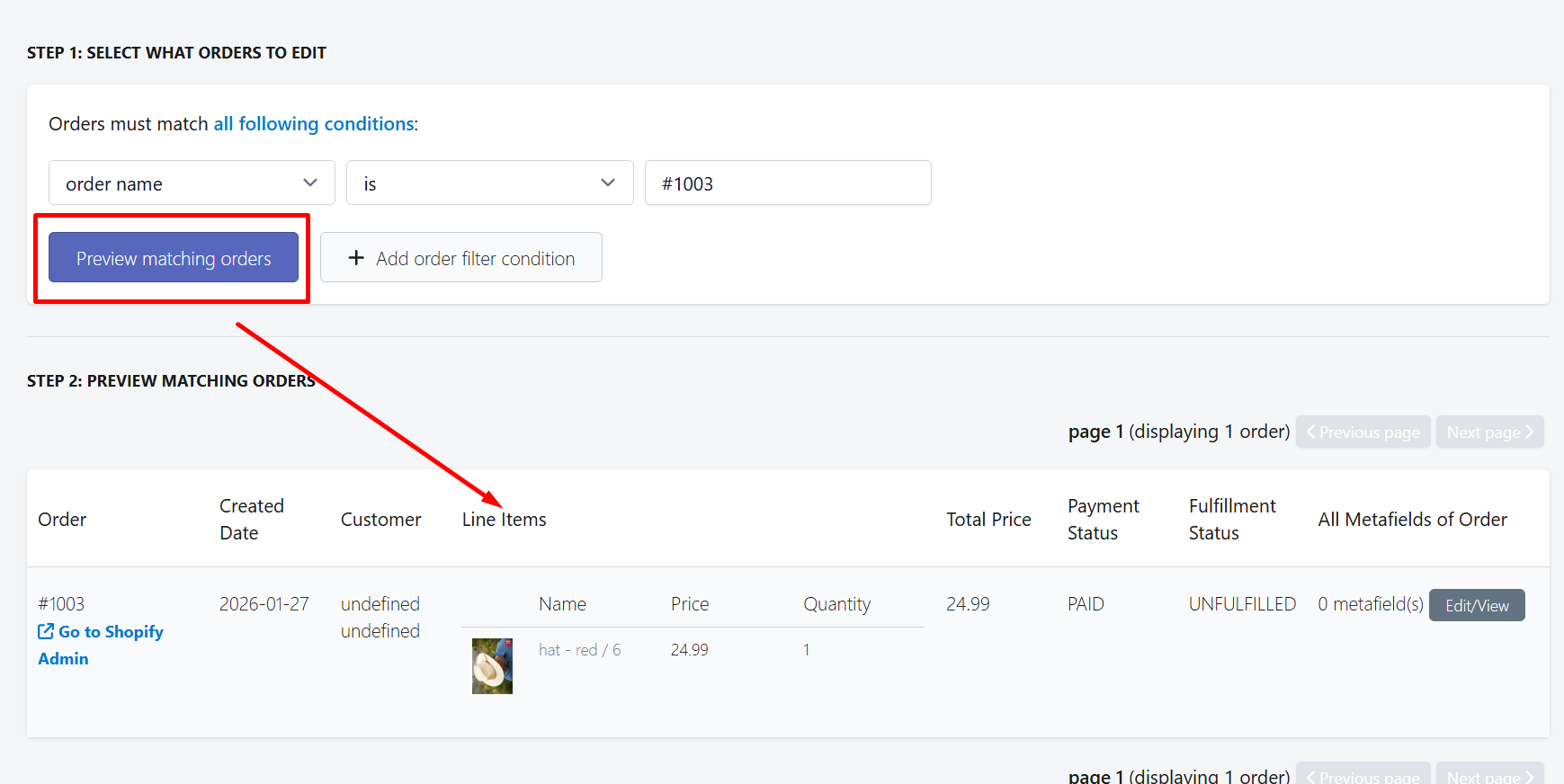
2. Select the function to edit your metafields.
You can either choose to add or remove a metafield from your order, or add/remove a value from an existing list type metafield.
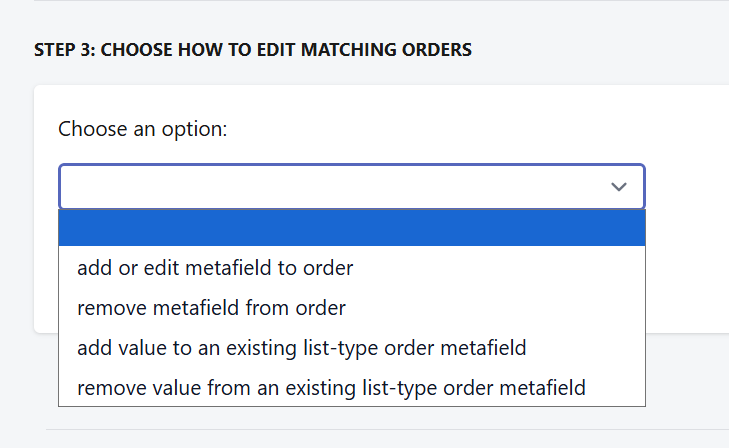
If you are looking to edit or populate a metafield, then you can choose the "add a metafield" function. If an already existing metafield is provided to the app, that metafield will be edited instead.
For example, to edit the custom.details metafield from before, I can use the following configuration:
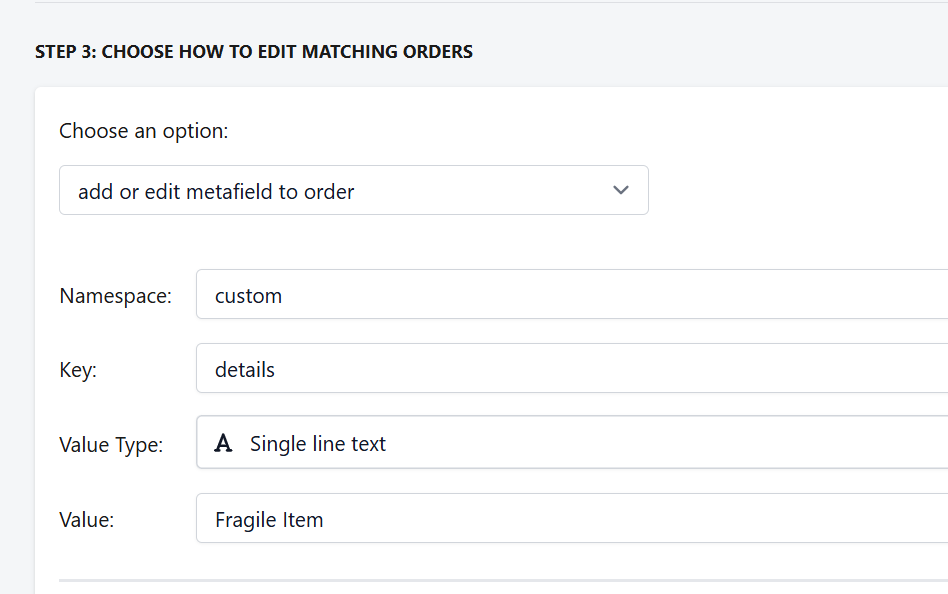
Once your task has been set up, you can run the task by clicking on the "Start Bulk Edit now" button.
If you have any additional questions on this, please feel free to reach out to us at support@hextom.com